

Are you looking to customize how your PDFs display across your WordPress site? Whether you want to adjust the viewer size, reposition the toolbar, or unlock advanced navigation options, PDF Embedder gives you full control over how embedded documents look and behave for your visitors.
This guide walks you through the general viewer settings available in our PDF Embedder plugin, covering both global configuration and per-embed overrides.
To get started with the PDF Embedder general viewer settings, head to Settings > PDF Embedder in your WordPress admin.
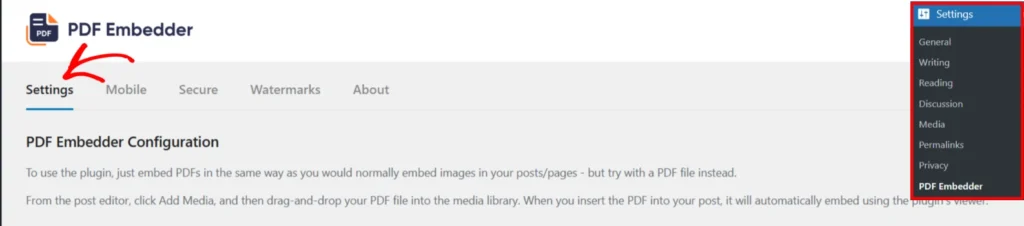
Changes made here apply site-wide as defaults. Any setting can be overridden on a per-file basis using shortcode attributes or the block sidebar options.
Configuring Size and Shape

By default, both Width and Height are set to max, which means the viewer expands to fill the full width of its parent container.
To set a fixed pixel width, enter a number in the Width field. For example, 500 renders the embed at 500 pixels wide. If the parent container is narrower than the value you enter, the viewer automatically scales down to fit.
Height is calculated automatically based on the width, so the PDF displays at its natural proportions. If you set a fixed Height value (for example, 200), the document may be cut off vertically.
Configuring the Toolbar
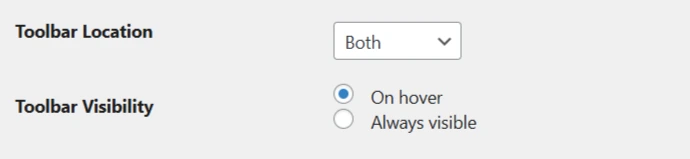
Toolbar Location controls where the page navigation bar appears. The options are top, bottom, both, or none. The default is bottom.
Toolbar Visibility controls whether the toolbar stays permanently on screen or only appears when a user hovers over the viewer. Set toolbarfixed="on" to keep it visible at all times. The default is off (hover only). Note that enabling this option increases the total height of the embedded area.
Premium Settings
Premium: The following settings require PDF Embedder Premium plugin.
Interaction and Navigation Settings
Continuous Scrolling
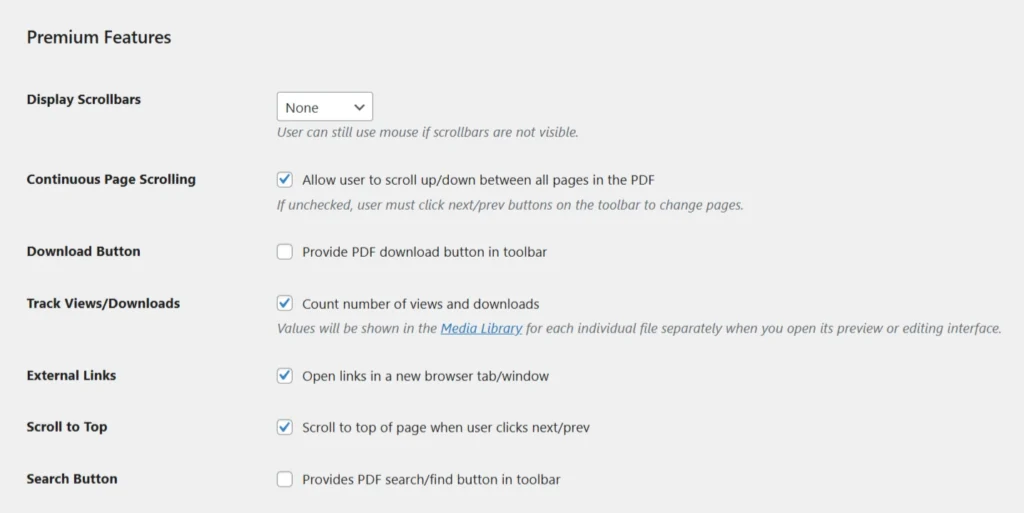
By default, Premium users can scroll through all pages using the mouse wheel, touch, or click-and-drag. This is controlled by the Continuous Scroll setting, which is on by default for Premium installs.
To disable it globally, turn off Continuous Page Scrolling in Settings > PDF Embedder. This will apply to all embedded PDFs using the global settings.
Display Scrollbars
This helps in making it obvious to users that more content is available on further pages. You can turn on Display Scrollbars to show permanent vertical or horizontal scrollbars inside the viewer. The default setting for this option is none.
Scroll to Top
When enabled, the browser window jumps to the top of the embed area each time a visitor changes pages. This option is set to off by default.
External Links
This setting controls whether hyperlinks inside your PDFs open in a new browser tab. This option is set to on by default.
Search button
When this is enabled, it adds a search icon to the toolbar so users can look up texts within the PDF.
Performance and Tracking Settings
Download Button
Toggle the download icon in the toolbar with Download Button. The default is on for standard Premium installs and off for Secure installs.
Tracking Views and Downloads
Check the Track Views and Downloads option to record how many times each embedded PDF is viewed and downloaded on your site. When enabled, the plugin keeps a running total of views and downloads for each PDF. To see those totals, open the Media Library, click a PDF file to view the attachment details, and check the right-hand column to see the stats.
This is a global-only setting with no per-embed override.
Frequently Asked Questions
Below are some common questions about general viewer settings.
Are continuous scrolling and scrollbars available in the free version?
No. Both require a PDF Embedder Premium plugin. Free version users navigate with the Prev and Next arrow buttons.
Why does my toolbar disappear when I’m not hovering?
That is the default behaviour. Set toolbarfixed="on" in the shortcode, or turn on Toolbar Fixed in the global settings, to keep the toolbar visible at all times.
Can I override global settings for just one PDF?
Yes. You can override the global settings by adding a related shortcode attribute or by modifying the PDF Embedder block settings for the file you have embedded.
Is the download button available in the Free version?
No. The download button is a Premium-only feature.