

PDF Embedder Attachments is a Pro plan feature.
Upgrade your license to unlock PDF Embedder Attachments and other powerful features.
Are you looking for a quick way to give each of your PDFs its own dedicated page on your WordPress site? With PDF Embedder, you can make use of the attachment pages for every PDF in your Media Library, saving you from manually creating a separate page for each document.
This guide explains what attachment pages are, how to access them, and how to enable them for secure PDFs.
What are attachment pages?
WordPress generates an attachment page for every file uploaded to the Media Library. When our PDF Embedder Premium plugin is active, that attachment page automatically includes an embedded viewer for the corresponding PDF. This means each PDF gets its own public URL with an embedded PDF, without any extra setup.
You can link directly to an attachment page from anywhere on your site, use it as a destination for a thumbnail image, or share it externally.
Finding the Attachment Page
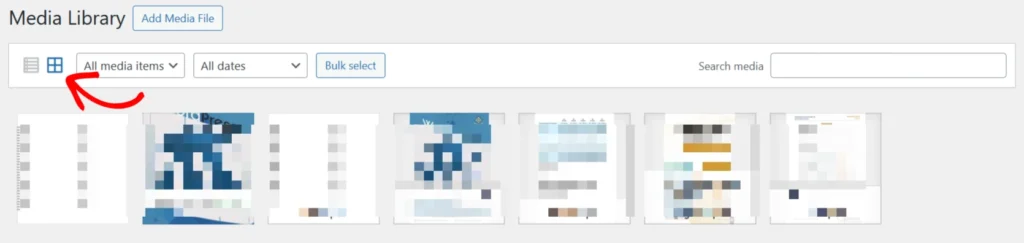
To access the dedicated page for your PDF, start by navigating to WordPress Dashboard > Media > Library. Ensure you are using the Grid view by clicking the grid icon near the top of the page for the necessary links to be accessible.
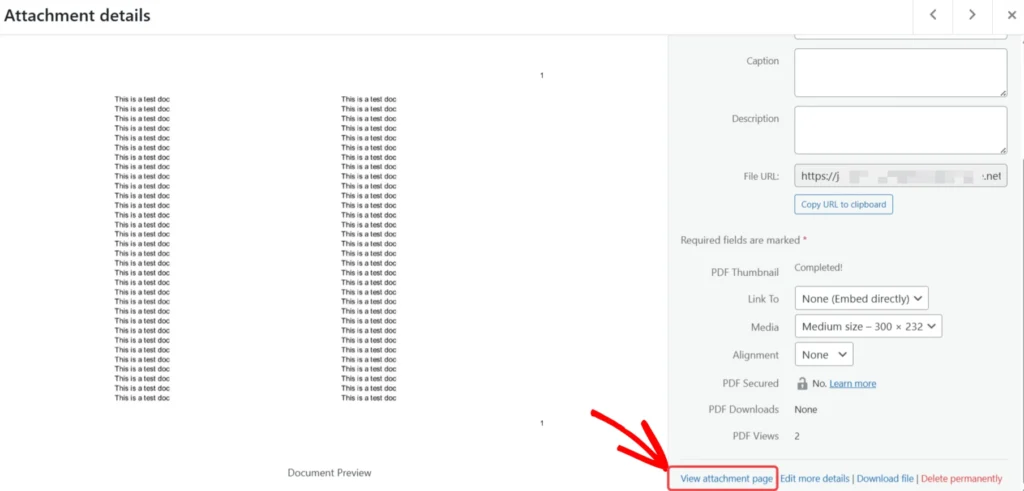
From there, click on your PDF to open the attachment details panel. In the right column, click the View attachment page link to open the standalone page where your PDF will be displayed in the embedded viewer.
Enabling Attachment Pages for Secure PDFs
By default, attachment pages are not generated for PDFs stored in secure mode. To enable them, go to Settings > PDF Embedder > Secure and check the Auto-generate Attachment Pages for Secure PDFs option.
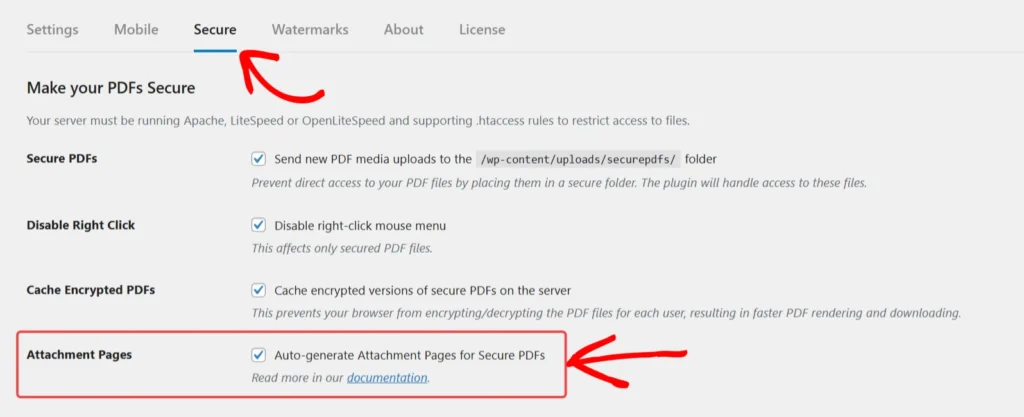
Note that from WordPress 6.4 onward, attachment pages are disabled globally for all media files. This setting overrides that global behavior specifically for secure PDFs managed by our plugin.
Troubleshooting Attachment Pages
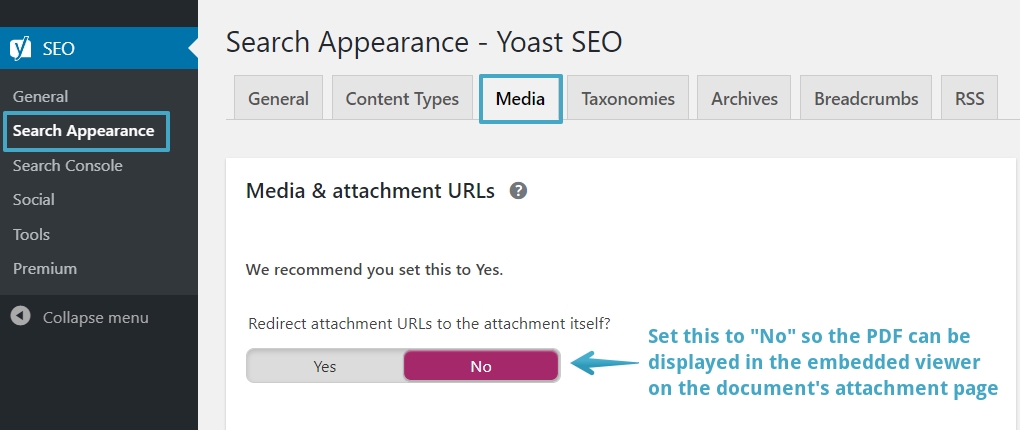
Some SEO plugins include a redirect option for media attachment URLs. This redirect conflicts with the URL permissions that the plugin uses to protect secure PDFs from direct access. If your attachment pages are not loading correctly, check your SEO plugin’s settings and disable any redirect that targets media attachment pages.
In Yoast SEO, go to Yoast SEO > Search Appearance > Media and set the media attachment URL redirect to Disabled.
Frequently asked questions
Below are some common questions about attachment pages.
Do attachment pages work with the Free version?
No. Automatically embedding a PDF viewer on attachment pages requires our PDF Embedder Premium plugin.
Can I customize the layout of an attachment page?
The attachment page uses your active theme’s page template. You can edit the template or override it with your theme’s customization options, but PDF Embedder does not provide a dedicated layout setting for attachment pages.