

Do you want to limit who can view or download PDFs on your WordPress site, whether that means logged-in members only or visitors who’ve paid for access? PDF Embedder handles the display and protection of the PDF itself, but access control depends on how you structure your site.
This guide covers three approaches: selling direct PDF downloads, offering a preview before purchase, and restricting embedded PDFs to paying members only.
Selling PDFs as Direct Downloads
If your goal is to sell a PDF as a downloadable file and deliver it only after payment, a dedicated digital sales plugin is the right tool. Easy Digital Downloads stores files securely and generates a download link only once a user has completed a purchase. PDF Embedder is not required for this use case.
Offering a Preview Before Purchase
Some sites want visitors to preview a PDF before they commit to buying it, then restrict full access until payment is complete.
To set this up, maintain two copies of the PDF:
- Upload one copy to Easy Digital Downloads as the purchasable download, protected by the digital sales plugin.
- Upload a second copy to your WordPress Media Library as a secure PDF using our PDF Embedder Premium plugin on the Pro plan or higher.
Embed the secure version on a publicly accessible preview page. Because it is delivered through the secure viewer, visitors can read it in the browser but cannot easily obtain the original file. Once they purchase through Easy Digital Downloads, they receive the full download.
PDF Embedder Secure is a Pro plan feature.
Upgrade your license to unlock PDF Embedder Secure and other powerful features.
Restricting Viewing to Paying Members
Membership sites often need to prevent non-paying visitors from viewing a PDF at all, not just from downloading it.
The recommended approach is to use a membership plugin such as s2Member (free version available). Set up s2Member with PayPal so visitors can pay to become members. Then:
- Upload your PDF to the WordPress Media Library with secure mode active (requires the Pro plan or higher).
- Create a WordPress page and embed the PDF using the PDF Embedder block or shortcode.
- Use s2Member’s access controls to restrict that page to paying members only.
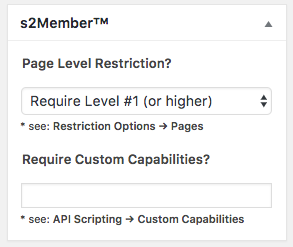
Visitors who are not logged in as members will not be able to reach the page, and therefore cannot view the embed.
Showing PDFs Only to Logged-In Users (No Payment Required)
To show or hide content based on login status without a paid membership system, a shortcode-based plugin such as User Status Shortcode can wrap the PDF embed. Combine it with the download attribute to control what logged-in and logged-out visitors see:
[userloggedin]
    [pdf-embedder url="..." download="on"]
[/userloggedin]Code language: JSON / JSON with Comments (json)
[userloggedout]
Please log in or create an account to view this document.
[/userloggedout]
Logged-out visitors see the message while the logged-in users see the embedded PDF.
FAQ
Below are some common questions about restricting PDF access on WordPress sites.
Can PDF Embedder control access permissions on its own?
No. PDF Embedder displays PDFs and provides tools like the download button, full-screen mode, and page navigation. Access control (deciding who is allowed to see a given page or post) is handled by WordPress or a dedicated membership or access control plugin.
Can a user still get the PDF even with secure mode on?
Secure mode makes it difficult for users to obtain the original file directly, but it is not possible to fully prevent a determined user from capturing content they can view on screen. For most use cases, secure mode provides adequate protection.