

Seeing a “Setting up fake worker failed” error after updating PDF Embedder? This error means a caching or minification plugin on your site has cached an older version of the plugin scripts that no longer matches the updated version. To resolve this you need to update the plugin, adjust caching settings, flush the cache, and reload.
This guide walks through understanding the error and the necessary steps to help resolve the error.
Checking the Plugin Version
Before adjusting any cache settings, head to Plugins > Installed Plugins in your WordPress dashboard and confirm you’re running the latest version of the plugin.
If the updated version is not showing on your site, you can update manually by installing the premium plugin from your site.
Adjusting your Caching Settings
The core cause of this error is a caching plugin that aggregates or inlines JavaScript files. When PDF Embedder’s worker scripts get merged with other scripts, the file structure that the plugin expects breaks down.
To resolve the error, you need to locate and disable the JS aggregation setting in your caching plugin. Below are some common locations for some known plugins:
WP Rocket: Go to WP Rocket > File Optimization and disable Combine JavaScript files (if present in your version). You sould also disable Remove Query Strings from Static Resources if that option exists.
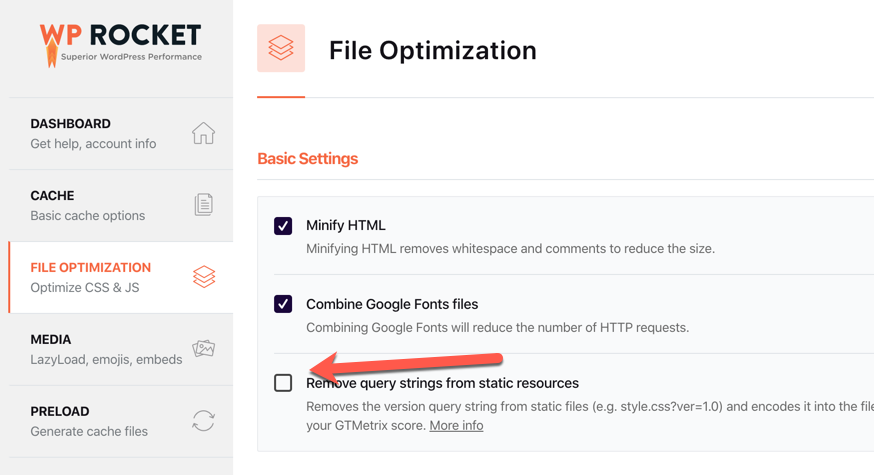
W3 Total Cache: Go to W3 Total Cache > Browser Cache and uncheck Remove Query Strings From Static Resources.
Autoptimize: Disable the Aggregate JS-files option.
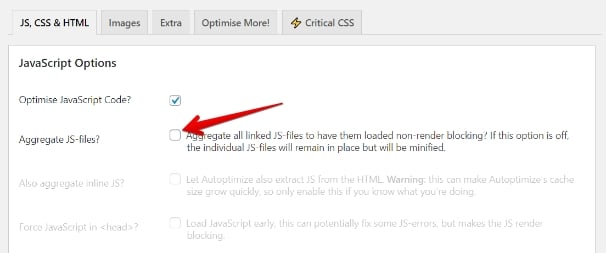
Other caching plugins: Look for any option related to aggregate JS, combine JS, or inline JS in the performance or optimization settings and disable it.
SiteGround Hosting
If you are hosted with SiteGround, the issue is almost certainly related to the SiteGround Speed Optimizer (formerly SG Optimizer) plugin.
While SiteGround’s optimization tools are excellent for performance, their aggressive JavaScript combination and minification settings can sometimes break the connection between the PDF viewer and its background “worker” engine.
Follow the steps below to resolve this conflict and get your PDFs displaying correctly again.
Adjusting SiteGround Speed Optimizer Settings
The “Fake worker” error usually occurs when the path to our script is altered or hidden. In your WordPress dashboard, navigate to Speed Optimizer > Frontend Optimization and check the following:
- Disable “Combine JavaScript Files”: This is the most common culprit. When multiple scripts are merged into one, the unique path required for the PDF worker script is often lost. Turn this setting OFF.
- Disable “Remove Query Strings from Static Resources”: PDF Embedder uses query strings to identify specific script versions. Ensure this option is unchecked.
- Check Mobile Caching: Navigate to the Caching tab. Ensure that your mobile caching settings are identical to your desktop settings. If they differ, you may find that the PDF works on a computer but fails on a phone or tablet.
Purging SiteGround Cache Layers
SiteGround uses multiple layers of caching (NGINX, Dynamic, and Memcached). After changing the settings above, you must refresh these layers to see the results:
- Click the Purge SG Cache button in the WordPress top admin bar.
- Alternatively, go to Speed Optimizer > Caching and click the Purge All button.
- If you have the SiteGround/Cloudflare integration enabled, click the Purge Cloudflare Cache button found within the SiteGround Caching dashboard.
Advanced: Excluding PDF Embedder assets via PHP
If you prefer to keep JavaScript combination enabled for the rest of your site, you can manually exclude PDF Embedder by adding a filter to your theme’s functions.php file. This tells SiteGround to leave our scripts untouched while optimizing everything else.
Add the following code snippet to your site:
/**
 * Exclude PDF Embedder from SiteGround JS/CSS Optimization
 */

// Exclude from JS Combination and Minification
add_filter( 'sgo_javascript_combine_exclude', 'js_combine_exclude' );
add_filter( 'sgo_js_minify_exclude', 'js_minify_exclude' );
function js_combine_exclude( $exclude_list ) {
    $exclude_list[] = 'pdfemb_embed_pdf_js';
    $exclude_list[] = 'pdfemb_pdf_js';
    return $exclude_list;
}

// Exclude from CSS Combination and Minification
add_filter( 'sgo_css_combine_exclude', 'css_combine_exclude' );
add_filter( 'sgo_css_minify_exclude', 'css_minify_exclude' );
function css_combine_exclude( $exclude_list ) {
    $exclude_list[] = 'pdfemb_embed_pdf_css';
    return $exclude_list;
}
Code language: PHP (php)
Flushing All Caches
Once you have adjusted your caching settings, it is essential to flush every layer of your cache to ensure the changes take effect. Begin by purging your caching plugin using the “Clear Cache” or “Purge All” button, and be sure to specifically clear the JS cache if your plugin manages script optimization separately. If the error message identifies a specific cached file path, you should manually delete that file through your host’s file manager if you have access. Finally, ensure that you also clear any server-side or theme-level caches to completely refresh the environment and resolve any lingering issues.
Clearing Your Browser Cache
Finally, clear your browser cache and do a hard reload:
- Windows:
Ctrl + Shift + R - Mac:
Cmd + Shift + R
The viewer should now load without the error.
We also recommend going through our guide on Using Caching and Minifying Plugins to exclude required paths from your site’s cache and/or minifying plugin.
Frequently Asked Questions
Below, we’ve addressed some common questions about the fake worker error.
Will disabling JS aggregation slow down my site?
PDF Embedder’s scripts are already minified. Excluding them from JS aggregation has no impact on load speed. Caching plugins aggregate scripts to reduce HTTP requests, but since the plugin’s scripts must stay separate to function correctly, the exclusion costs nothing in practice.
The error keeps coming back after each plugin update. How do I prevent this?
The error typically appears once after an update because the cached version of the scripts no longer matches the new version. After applying the settings above and flushing the cache, the error should not return on future update.