

PDF Thumbnails is an Elite plan feature.
Upgrade your license to unlock PDF Thumbnails and other powerful features.
Are you looking to generate thumbnail images from your PDF files? The PDF Thumbnails plugin generates a static image of the first page of any PDF you upload, which you can then use anywhere on your site as a standard image.
This guide covers the installation, usage, and settings for the PDF Thumbnails plugin.
Before getting started, please review our PDF Thumbnails changelog to ensure your site meets the minimum requirements for the plugin.
Installation
The first step is to download the PDF Thumbnails plugin. The plugin is included as a separate file with the purchase of an Elite license. You receive a download link by email after purchasing.
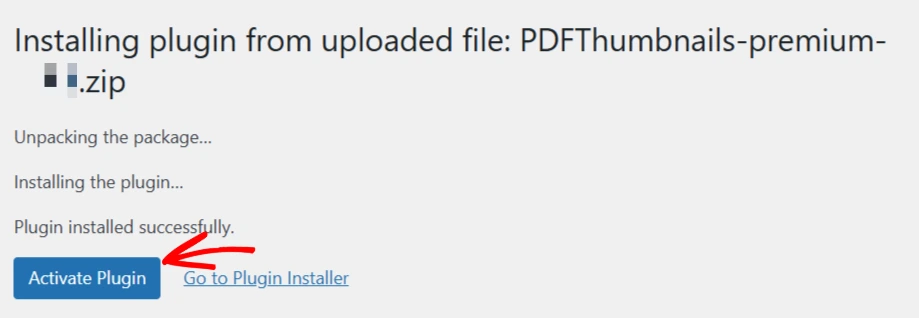
After downloading, the next step is to install the plugin on your site. In your WordPress admin, go to Plugins > Add New, then click Upload Plugin.

Select the ZIP file you downloaded and click Install Now. After the installation, click Activate Plugin.
Generating a thumbnail
Upload a PDF to your Media Library. After the upload completes, click on the PDF to open its detail view. In the right-hand panel, look for the PDF Thumbnail row, which shows “Generating…” while the image is being created.
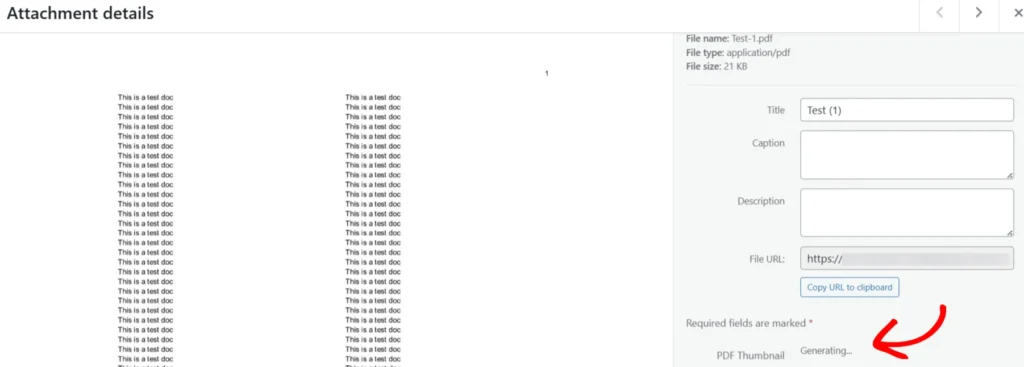
Once the thumbnail generation is complete, reload the detail view. The PDF now has a thumbnail icon in the Media Library. A Regenerate thumbnail link appears in the detail view if you ever need to rebuild it (for example, after replacing the PDF file with an updated version).
A thumbnail is generated from the first page of the document only.
Using the thumbnail image
The generated thumbnail is a standalone image in the Media Library, associated with the PDF as its parent file. It can be used independently anywhere on your site as a featured image, in a gallery, or in a page builder module.
A common use is setting the thumbnail as the featured image for a post that contains an embedded PDF. This ensures the correct preview image appears in your blog feed and when the post is shared on social media.
Embedding options when a thumbnail is present
When you insert a PDF into a post or page through the Media Library, the presence of a thumbnail adds new Link To options:
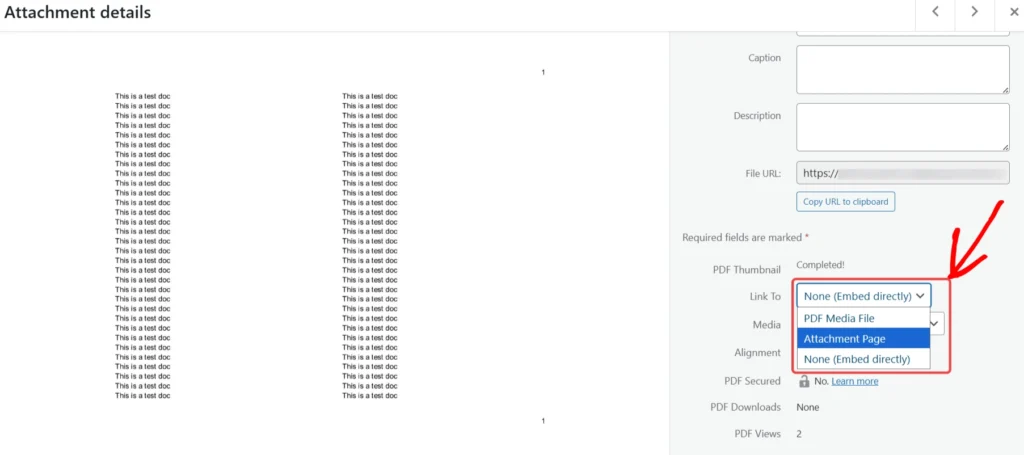
None (embed directly): The PDF is embedded in the page using the standard PDF Embedder viewer. The thumbnail is not used in this mode.
Attachment Page: The thumbnail image is displayed in your content as a link. Clicking it takes the user to the PDF’s attachment page, where the full embedded viewer loads. Use the Media dropdown to choose the image size and the Alignment option to position it.
PDF Media File: Similar in appearance to the Attachment Page option, but clicking the thumbnail link takes the user directly to the raw PDF file rather than an attachment page.
Generating for existing PDFs
By default, the tool only generates thumbnails for PDFs that do not already have one. To create thumbnails for PDFs already in your Media Library, first head to Settings > PDF Thumbnails.
To regenerate all thumbnails and overwrite existing ones, uncheck Only generate thumbnails for PDFs that don’t already have one.
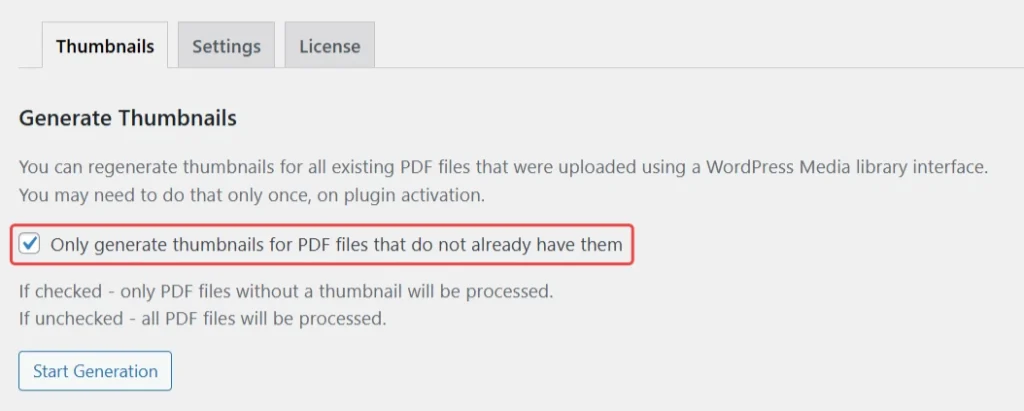
Then click on the Start Generation section.
PDF Thumbnail settings
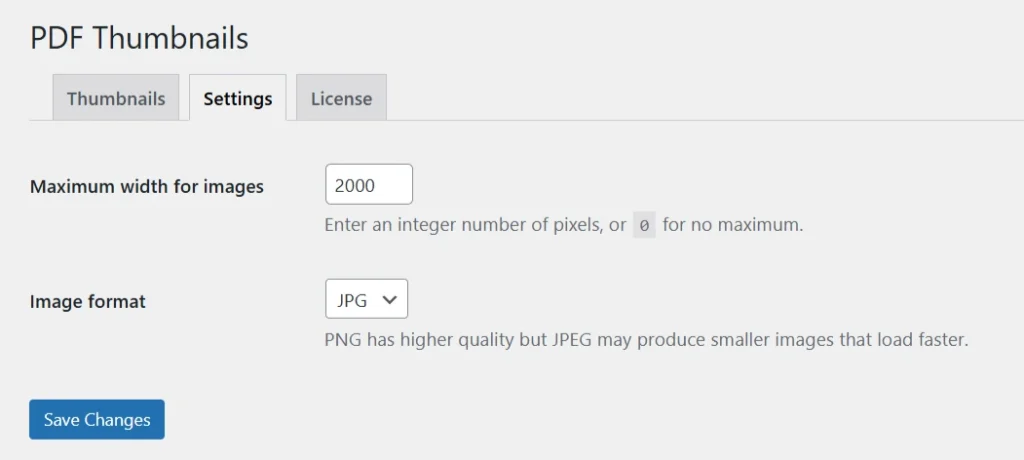
Under Settings > PDF Thumbnails > Settings, you can set a Maximum Width in pixels for generated thumbnails. The default is 2000. Reduce this for smaller file sizes or increase it if you need very large images. Set it to 0 to apply no maximum.
The thumbnail’s aspect ratio is determined by the PDF itself. WordPress also generates standard small, medium, and large variants automatically.
Choose PNG or JPEG as the output format. JPEG produces smaller files and generates faster. PNG produces higher quality output at a larger file size.
Frequently asked questions
Below are some common questions about PDF thumbnails.
Can I use the thumbnail without PDF Embedder?
Yes. Once generated, the thumbnail is a standard Media Library image and can be used anywhere on your site, independently of the PDF Embedder plugin.