

PDF Embedder Elementor Widget requires a Premium plan.
Unlock the PDF Embedder Elementor Widget and other powerful features.
Are you looking to use PDF Embedder on pages built with the Elementor page builder? You can achieve this with the PDF Embedder widget, which integrates directly with the Elementor editor, giving you a dedicated panel to configure every embed setting.
This guide covers how to add the PDF Embedder widget in Elementor and walks through each setting in the widget panel.
Adding the PDF Embedder Widget
To get started, open the page you want to edit in Elementor. In the widget panel on the left, search for “PDF Embedder” and drag the widget into your layout.
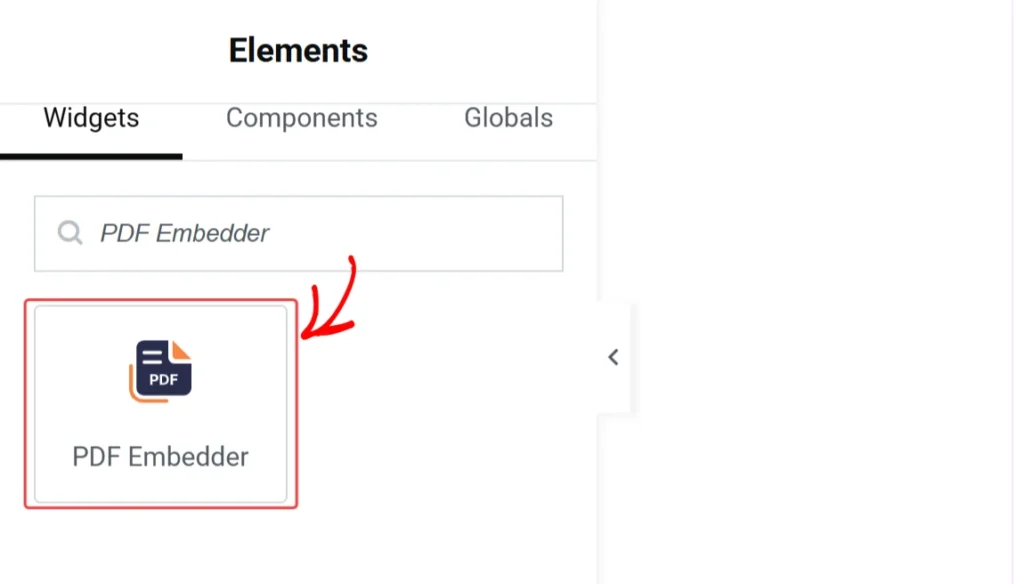
The widget is added to your content area, and the Edit PDF Embedder panel opens on the left.
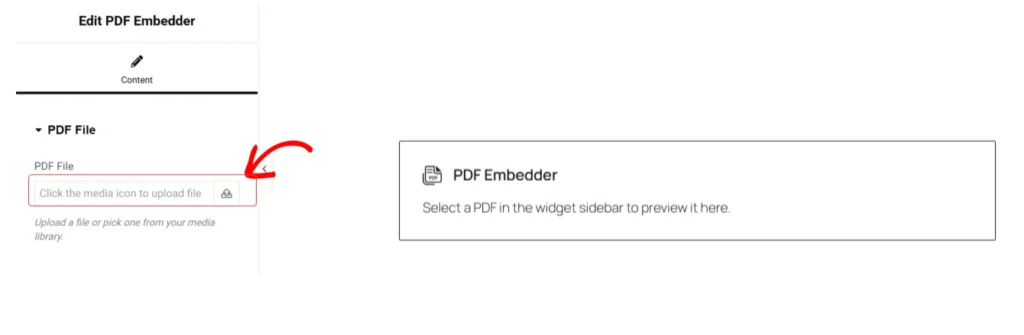
Once a PDF is selected, a live preview of the embed renders directly in the Elementor canvas. This lets you see how the PDF viewer will appear in the front end without leaving the editor or publishing the page first.
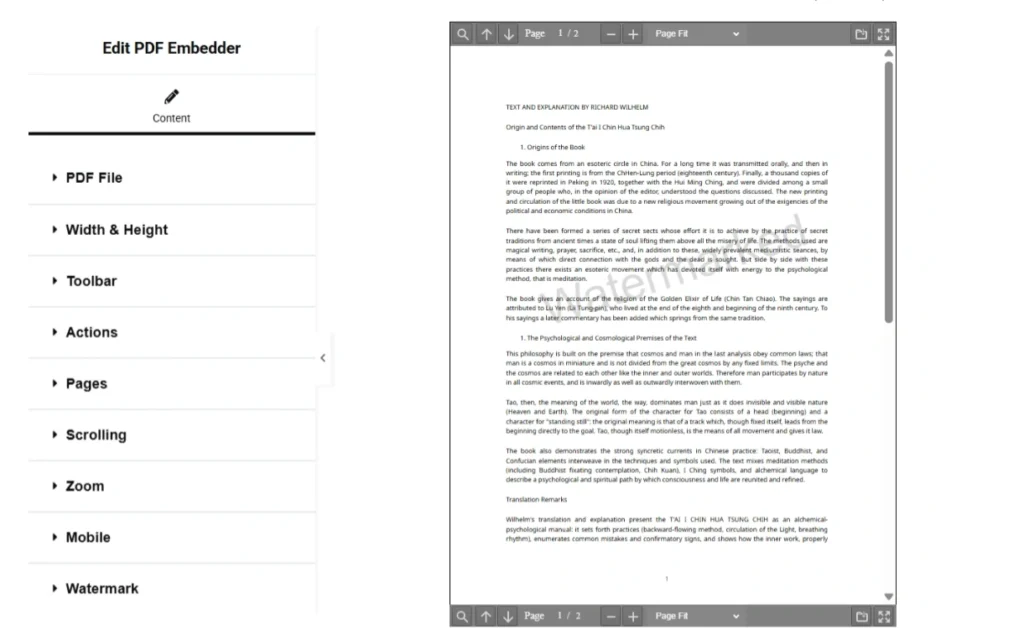
Configuring the Widget Settings
After you have uploaded the PDF, the next step is to customize the viewer settings. When editing the PDF Embedder widget, you should see the setting tabs on the left panel. Below is a list of the tabs and the settings under each tab:
PDF File
The PDF File tab allows you to select the PDF you want to embed. Click the upload icon to open the WordPress Media Library, where you can upload a new file or choose an existing one.
Width & Height
The Width & Height tab allows you to set the dimensions of the embed.
Both fields default to max, which fills the available width of the Elementor column the widget sits in. Enter a pixel value in either field to fix the dimension. Setting a fixed height may cut off the document vertically if the value is smaller than the natural height of the PDF at the given width.
Toolbar
The Toolbar tab controls how the navigation toolbar behaves. You can configure the following:
- Location: Sets where the toolbar appears relative to the viewer. Options are
top,bottom,both, ornone. The default isbottom. - Fixed: When on, the toolbar stays visible at all times. When off, it appears only when the user hovers over or touches the viewer. The default is off.
Actions
The Actions tab allows you to configure interactive behaviors within the viewer. You can configure the following:
- Download button: Toggles the download icon in the toolbar. On by default for the standard Premium version; off by default for the Secure version.
- External links: When on, hyperlinks inside the PDF open in a new browser tab. The default is on.
- Disable right click: When on, right-clicking on the viewer is blocked. This prevents users from accessing browser context menu options such as “Save Image As”. This setting applies only to Secure embeds.
Pages
The Pages tab is where you configure page navigation options. You can configure the following:
- Starting page: Sets which page the PDF opens on. Leave blank or set to
1to start at the beginning of the PDF file. - Page text box: When on, the page number displayed in the toolbar is always an editable field, letting users type a page number to jump to directly. When off, users must click the page number to activate the field.
Scrolling
The Scrolling tab allows you to configure how users move through the document. You can configure the following:
- Continuous scroll: When on, users scroll through all pages using the mouse wheel, touch gestures, or click-and-drag. When off, users navigate using the Prev and Next buttons only. Continuous scroll is a Premium feature; it is not available in the Free version.
- Scrollbars: Forces a permanent scrollbar inside the viewer. Options are
vertical,horizontal,both, ornone. The default isnone. Most sites do not need this setting, as the viewer already supports mouse and touch panning. - Scroll to top: When on, the browser scrolls to the top of the embed area each time the user changes pages. The default is off.
Zoom
The Zoom tab allows you to set the opening zoom level for the PDF.
In this tab, you can enter a percentage value to start the document at a specific zoom, or choose from the preset options: auto, page-actual, page-fit, or page-width. The default is page-fit, which scales the document to fit the viewer’s width.
You can also set a separate zoom level for full-screen view using the full-screen zoom field.
Mobile
The Mobile is where you can set the breakpoint below which the viewer switches to mobile mode. You can configure the Mobile width, which is the pixel width threshold at which the viewer swaps from the full interactive embed to a thumbnail with a View in Full Screen button. The default is 500. Set this to 0 to always show the interactive viewer regardless of screen width. You can also configure the text shown on the button; this is set to View in Full Screen by default.
Watermark
The Watermark tab allows you to add dynamic text over the pages of the PDF. The Watermark text is where you can enter the text to display. Use smart tags to include viewer details: {fullname}, {username}, or {email}. Logged-out users see “Not logged in” in place of these values.
The remaining fields control the visual appearance of the watermark:
- Horizontal alignment:
left,center, orright - Horizontal offset (%): distance from the aligned edge (0–100)
- Vertical offset (%): distance from the top of the document (0–100)
- Font size (pt): size of the watermark text
- Font color: hex color value
- Opacity (%): transparency of the watermark (0 is invisible, 100 is fully opaque)
- Rotation (degrees): positive values rotate clockwise, negative values rotate counterclockwise
- Even pages only: when checked, the watermark appears on pages 2, 4, 6, 8, and so on
Frequently asked questions
Below are some common questions about the PDF Embedder Elementor widget.
Do the widget settings override my global plugin settings?
Yes. Any value set in the widget panel applies to that embed only and overrides the corresponding global default in Settings > PDF Embedder. Leave a field blank or at its default to inherit the global setting.