

PDF Embedder Watermarks is a Pro plan feature.
Upgrade your license to unlock PDF Embedder Watermarks and other powerful features.
Are you looking to add watermarks to your embedded PDFs? If you want to discourage users from screenshotting your documents or simply display ownership information, PDF Embedder lets you overlay dynamic text on top of every page of any embedded PDF on your site.
This guide covers how to navigate to the Watermarks settings tab in PDF Embedder and fine-tune the appearance and positioning of your watermark text.
Before you get started, if you use any caching tools on your site (from your hosting provider or a plugin such as Autoptimize or WP Rocket), make sure you exclude the PDF Embedder plugins from those caching tools as outlined in our Using Caching or Minifying Plugins guide.
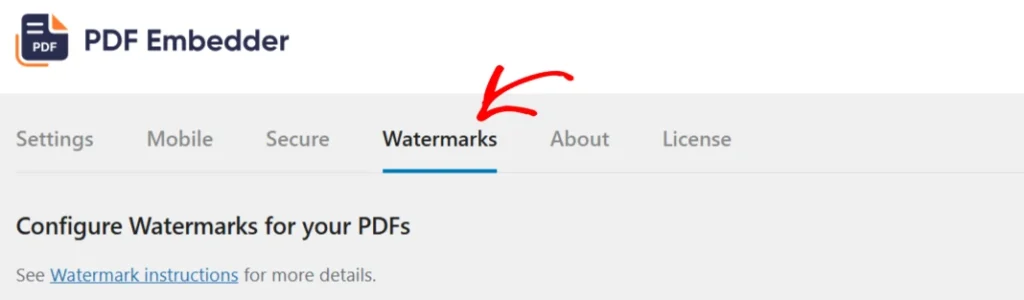
To get started, in your WordPress admin, head to Settings > PDF Embedder and click the Watermarks tab. All settings on this page apply to every PDF embedded on your site. Individual embeds can override these defaults using block settings or shortcode attributes.
Adding the Watermark Text
In the Text to display on secure PDFs field, enter the text you want to appear on each page. Leave the field blank to disable watermarks entirely.
To display logged-in user data dynamically, insert one or more of these smart tags anywhere in your watermark text:
{fullname}— the user’s full name{username}— the user’s WordPress username{email}— the user’s email address

If a visitor is not logged in, these tags display “Not logged in” in their place. Keep this in mind if your PDFs are visible to the public.
For custom smart tags and developer-level tag registration, see our Smart Tags for Watermarks guide.
Watermarks also work on non-secure PDFs by using the watermark attribute in the PDF Embedder Shortcode
Configuring Watermark Appearance
The following settings allow you to control the visual appearance of the watermark.
Horizontal Alignment and Horizontal Offset
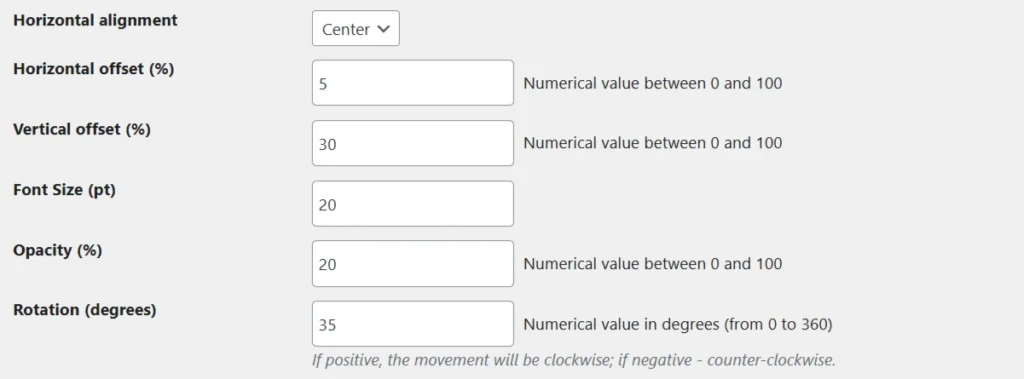
Horizontal Alignment sets the baseline position of the watermark text. This can be left, center, or right.
Horizontal Offset works differently depending on your alignment choice:
leftalignment: the offset sets the gap between the left edge of the PDF and the watermark text (similar topadding-leftin CSS)rightalignment: the offset sets the gap between the right edge and the watermark text (similar topadding-rightin CSS)centeralignment: the offset has no effect, since the text is centred automatically
Both fields accept a numerical value between 0 and 100 (as a percentage). Misconfiguring these two settings together can push the watermark text outside the visible area of the PDF, so adjust them in combination.
Vertical Offset
Vertical Offset sets the gap between the top edge of the PDF and the watermark text, expressed as a percentage between 0 and 100. A value of 0 places the watermark at the very top edge of the page. The recommended minimum is 5.
Note that if your watermark is rotated, the vertical positioning is calculated from the top pixel of the rotated text, not from its visual centre. A 50% vertical offset on a rotated watermark may not look visually centred.
Font Size
Font Size uses point (pt) units, the same measurement system used in PDF documents. This value scales independently of screen resolution. Adjust it until the watermark reads clearly at your typical PDF display size without overpowering the document content.
Opacity
Opacity controls how transparent the watermark appears, on a scale of 0 to 100.
0makes the watermark invisible100renders the watermark at full opacity, completely blocking whatever is beneath it on the page
A value between 15 and 30 is typical for a subtle, non-intrusive watermark.
Rotation
Rotation accepts a value in degrees from 0 to 360. Positive values rotate the text clockwise; negative values rotate it counter-clockwise. A diagonal watermark (common in document security) typically uses a value around 30 to 45 degrees.
Rotating the text also shifts its visible position, because the positioning is calculated from the top pixel of the rotated bounding box rather than the text’s visual centre.
Page Display
Page Display lets you choose whether the watermark appears on all pages or only on even-numbered pages (2, 4, 6, 8…). Check Show only on even page numbers to restrict the watermark to even pages.
Frequently Asked Questions
Below are some common questions about watermark configuration.
Downloading the embedded PDFs does not include the watermark
The PDF Embedder plugin does not alter the original document in any way, so the watermark is not retained should the document be downloaded.
To make a watermark visible after downloading the PDF file would require the watermark to be added to the document prior to being uploaded to your site.
I am seeing the text ‘Not logged in’ on my PDFs
The smart tags ({fullname}, {username}, {email}) are replaced with the text “Not logged in” if the user is not logged in to your site.