
Trusted by 300,000+ users worldwide
Securely Embed Your WordPress PDFs
Every PDF in your Media Library opens for anyone with its URL. With PDF Embedder, you’ll have files in a secured folder that restricts direct access, readable only where you embed them on your site.
Secure PDF Storage
Uploads go to a protected folder, not your public uploads directory.
Direct Access Blocking
Requests for the file itself are refused instead of served.
Right-Click Protection
Turns off the right-click menu on the PDF viewer.
Search Engine Exclusion
Crawlers cannot reach the file, so it stays out of results.
Secure PDF Storage
Per-File Control
Unique Attachment Pages
Premium Support
500+ Reviews
Trusted by 300,000+ WordPress Sites
Why 300,000+ Sites Choose PDF Embedder
Block Direct File Access
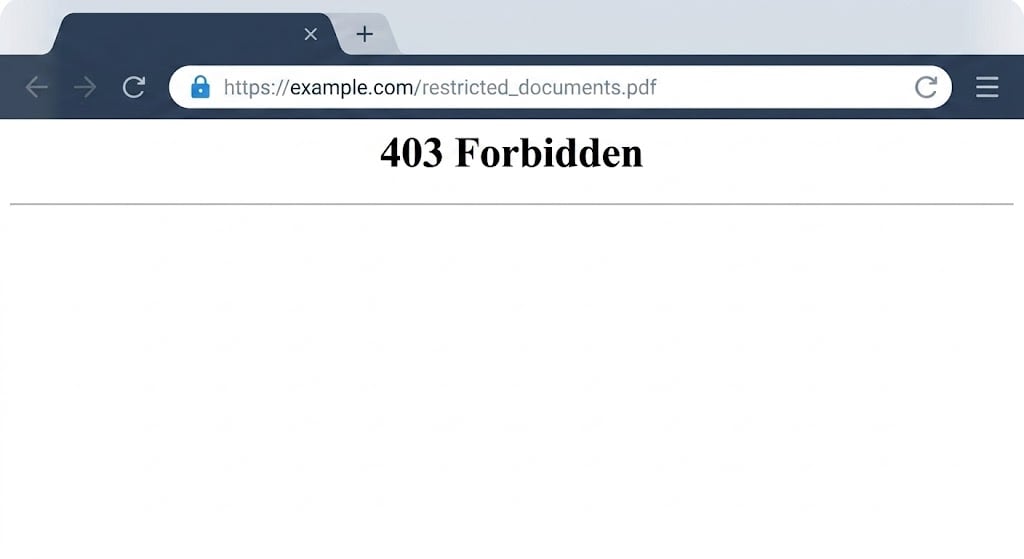
A locked page does not lock the document on it. WordPress serves everything in your Media Library at its own URL, and that URL answers whether or not the visitor ever got past your login or your membership plugin.
Switch on Secure PDFs and every upload from that point lands in wp-content/uploads/securepdfs/ instead of the standard uploads folder. The file keeps a path, but the server stops handing it over: request it directly and you get a 403 rather than the document. Your reader sees the same PDF, delivered to the viewer server-side.
Most sites never spot the gap, because nothing about it looks broken. The page is locked, the embed works, and the file has been sitting in the open the whole time.
Disable Right-Click Saving
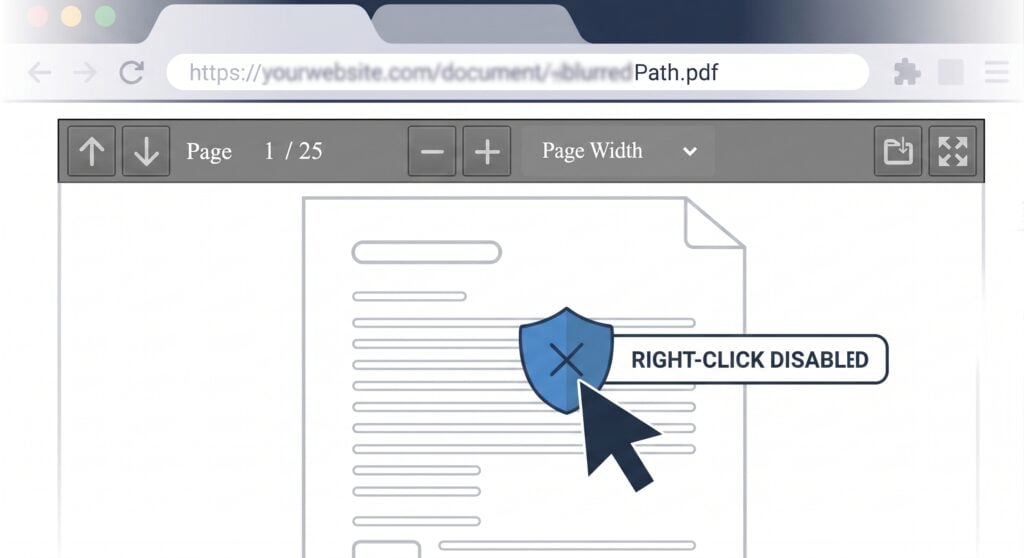
With direct access blocked, the rendered pages are still on screen. Some browsers put a Save Image As option in the right-click menu, which is enough to walk off with a page at a time.
Check Disable Right Click and the viewer stops answering the right-click menu. It applies to every secure embed on your site, and disablerightclick=”on” or disablerightclick=”off” in the shortcode overrides it for one document.
Most copying is opportunistic. Close the two-click route and the visitor who would have grabbed a page on impulse reads it instead.
Keep Documents Out of Google
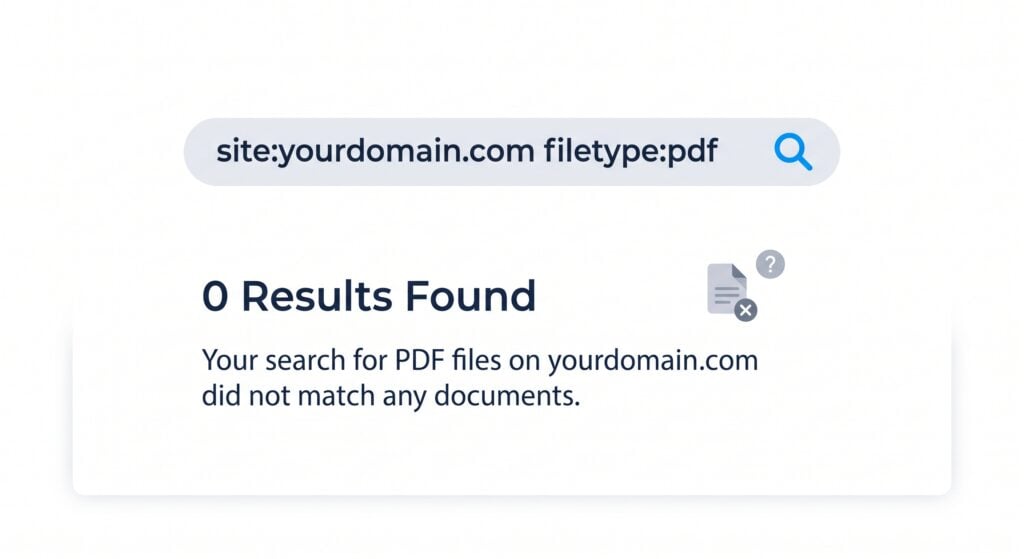
Search engines treat a text-based PDF much like a web page, and embedding it changes nothing. A tender response, an internal price list, or a client report can surface as a result you never published.
Files in the securepdfs folder are protected from direct URL access, and that shuts out crawlers along with everyone else. Search site:yourdomain.com filetype:pdf to see what is listed today.
The trade is deliberate. When you want a document found, leave it as a standard embed. Secure is for the ones you would rather Google never had.
Give Every PDF Its Own Page
Documents still need addresses. A link in a newsletter, a reference in a client email, a row in the resource list your team keeps.
Turn on Auto-generate Attachment Pages for Secure PDFs and each secured file gets its own WordPress page with the viewer on it, built from your theme’s page template. That page is the address you hand out.
Recipients get somewhere to read the document. They do not get the document. The setting also overrides the WordPress 6.4 change that switched attachment pages off across the board.
Secure Only What Needs Securing
Not every document is confidential. A menu or a spec sheet does its job by being found and shared, and locking one down costs you reach you wanted.
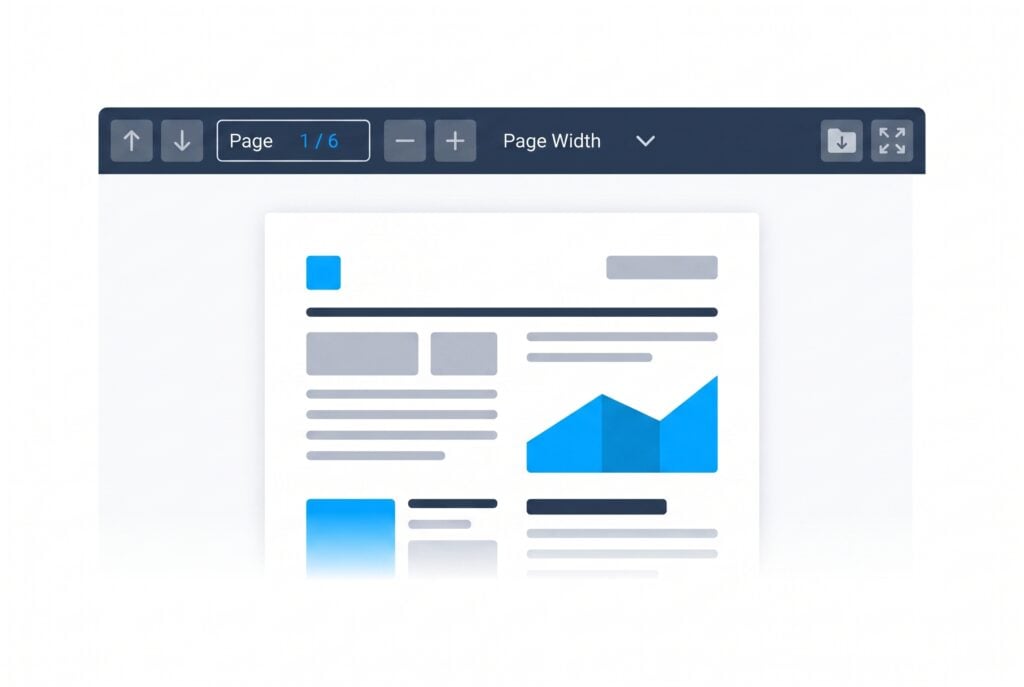
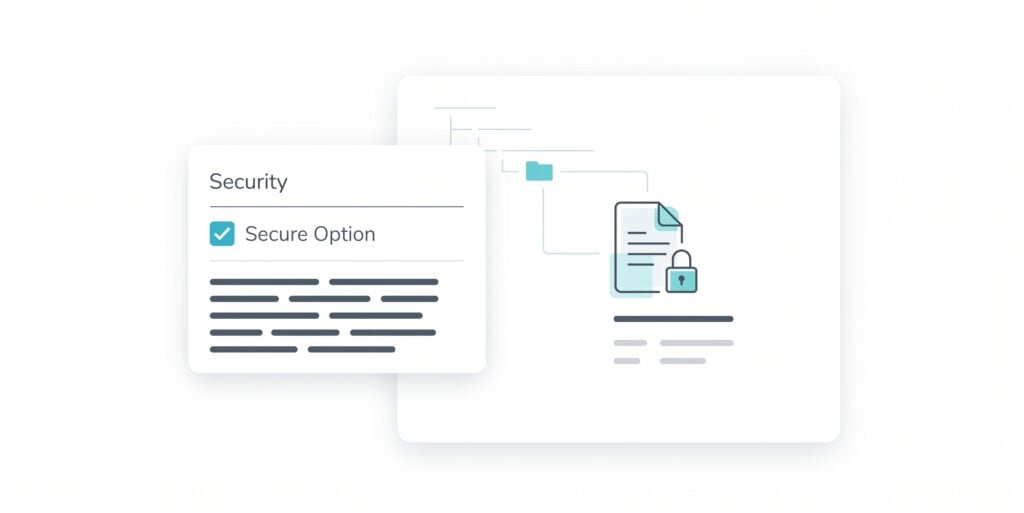
The Secure PDFs checkbox decides where your next upload goes, so you set it per document as you go. Files already on the site stay where they are, and secured and standard embeds run side by side.
One site, two rules. The brochure keeps working for you in search while the contract stays out of it, and nobody has to run a second install to make that happen.
Frequently Asked Questions
Have questions about secure PDFs? We’ve got answers.
What is PDF Embedder Secure and what does it do?
PDF Embedder Secure is the part of PDF Embedder that stores your uploads in a protected folder rather than the public uploads directory. Direct requests for a secured file are refused, so the document opens in the viewer on your page and nowhere else. The secure settings guide covers each option in the tab.
Is PDF Embedder Secure included in my plan?
PDF Embedder Secure is a Pro plan feature, so it needs a Pro or Elite license. With one of those active, the settings sit under Settings > PDF Embedder > Secure in your WordPress admin. You can compare all four plans on the pricing page.
Does PDF Embedder decide who is allowed to see a document?
No. PDF Embedder handles how a document is displayed and how well the file is protected. Deciding who may reach a given page is handled by WordPress itself, or by a dedicated membership or access control plugin. Secure storage is what stops that decision being bypassed through the file URL.
Are PDFs already on my site protected automatically?
No. PDFs uploaded before you switched Secure on are still in the standard uploads folder, so they need re-uploading to move into secure storage, and any shortcodes or blocks pointing at them need the new URLs. The secure settings guide walks through the migration.
Does PDF Embedder Secure work on Nginx, Caddy, or Microsoft IIS?
PDF Embedder Secure protects the folder on its own on Apache and Apache-compatible servers, LiteSpeed and OpenLiteSpeed included. Nginx, Caddy, and Microsoft IIS need the securepdfs directory blocked manually. Open Settings > PDF Embedder > Secure and follow the notice there to the guide for your server.
Will secure PDFs slow down my website?
Secure PDFs are encrypted before they reach the browser, and that first pass takes time. Cache encrypted PDFs is on by default, so later views come from the cached copy, and the plugin re-encrypts on its own when you replace the source file. If you run a caching or minifying plugin, exclude PDF Embedder from it.
Can a determined visitor still copy the content?
Secure mode makes it hard to obtain the original file, and no browser-based viewer can fully stop someone capturing what is on their own screen. For most sites that is the right trade: the source file stays yours, and copying becomes slow and manual instead of a single click.
You Might Also Like
Elementor PDF Widget
Drop a PDF into any Elementor layout with a dedicated widget, no shortcode and no switching editors.
Views and Downloads Counts
Show how many times a document has been viewed and downloaded, right in a page or post.
PDF Thumbnails
Show a first-page preview image instead of a generic file icon, so readers know what they are opening.