

Want to showcase multiple PDFs on a single page without a long vertical list? A grid of thumbnail images gives readers a visual way to browse your documents and click through to the one they need.
This guide shows you how to display a grid of PDF thumbnails on a page or post using the PDF Thumbnails plugin alongside PDF Embedder.
Before you get started, install and activate the PDF Thumbnails plugin in addition to the PDF Embedder plugin. The PDF Thumbnails plugin generates the thumbnail image for each PDF; the grid layout itself is built directly in the WordPress editor rather than through a plugin setting.
Adding a PDF Thumbnail to the Grid
With both plugins active, add an Image block to your page or post and select the PDF you want to include in the grid.
If you’re running WordPress 5 with Gutenberg 4.6.1, use the Classic Editor block instead.
Configuring the Image Block Settings
Set the following options on the image block:
- Link To: Attachment Page
- Media: Thumbnail
- Alignment: Left
Left alignment makes each thumbnail float next to the next one, forming a grid as you add more PDFs.
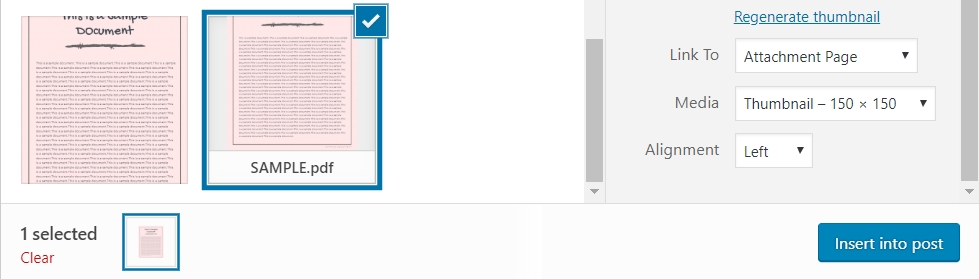
Configured correctly, the block inserts code into the page similar to this:
<a href="https://example.com/attachment-page-of-pdf-name/" rel="attachment wp-att-#" title="PDF Title" target="_blank">
   <img src="https://example.com/wp-content/uploads/2017/09/pdf-name-pdf-image-150x150.jpg" alt="" width="150" height="150" />
</a>
Code language: HTML, XML (xml)
The link points to the PDF’s attachment page, and the image tag displays the generated thumbnail at 150×150 pixels.
Repeat these steps for each PDF you want in the grid.
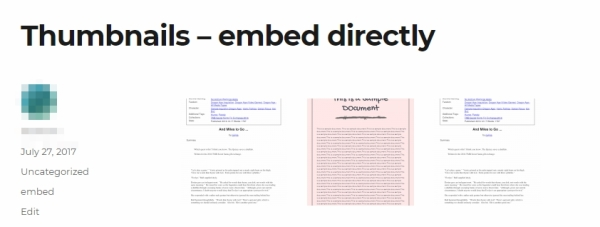
Depending on your theme, you may need to add CSS to adjust margins or spacing so the thumbnails line up in a full grid.
If you’re using PDF Embedder Secure, enable automatic generation of attachment pages in the Secure settings first. This method works with both our PDF Embedder Premium plugin and PDF Embedder Secure.