
Do you need to manage your license activations or free up a site activation on your PDF Embedder license? Your WP-PDF account dashboard lists every site each license is active on, and you remove the ones you no longer need from there.
This guide shows you how to manage your site activations and deactivate a site from your account.
Viewing Your Site Activations
To get started, you’ll first need to access your account.
Once you are logged in, go to the Downloads tab, which lists every license on your account.
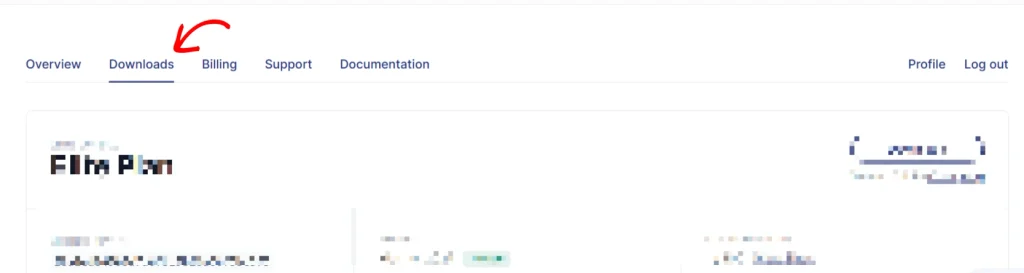
Find the license you want to manage. In the far-right column, Site Activations shows how many activations that license is using, with a View Sites link next to the count. Click the View Sites link.

The Manage Sites panel opens over the page and lists every site URL where that license is active.
Deactivating a Site
In the Manage Sites panel, find the site URL you want to remove and click Deactivate on the right of that row.
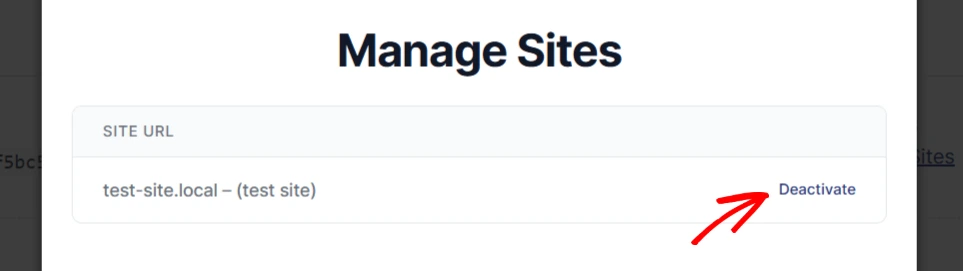
This removes the license activation from that site, and the site stops receiving automatic plugin updates until a license key is activated on it again.
To use that activation on another site, enter your license key on the site you want to activate next, as covered in our Verifying Your License Key guide.