

Ready to display a PDF on one of your pages or posts? There are two main ways to embed your PDFs with PDF Embedder on your site. The exact steps depend on which WordPress editor you use, but both paths get you to the same result in under a minute.
This guide covers how to embed your first PDF using the PDF Embedder plugin in the Block Editor (Gutenberg), the Classic Editor, and most page builders.
Using the Block Editor (Gutenberg)
First, head to your WordPress dashboard and choose edit for the post or page where you want the PDF to appear.
Once you’ve opened the page editor, you can add a new block by clicking the (+) Add Block icon in the upper left corner.

Search for “PDF Embedder”, and select the PDF Embedder block from the results.

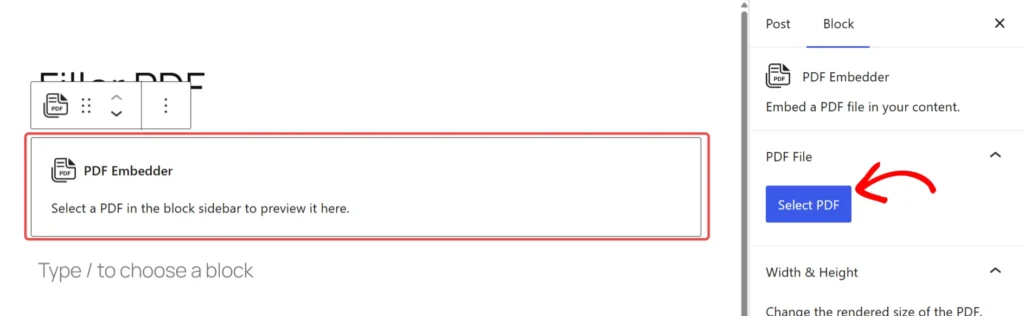
This will add the PDF Embedder block to the page editor. Next, click on the Media Library button inside the block.
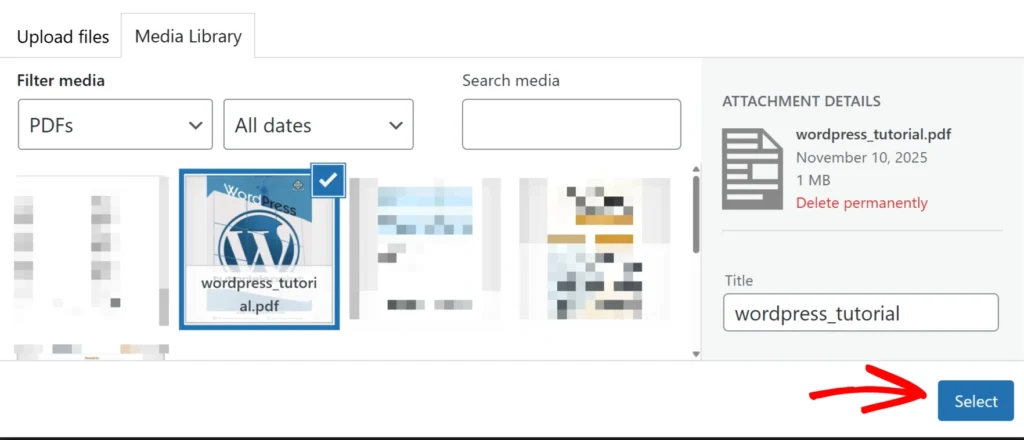
From here, upload the PDF file you want to embed or choose an existing one from your Media Library, then click Select.
A placeholder will appear in the editor showing the embedded PDF URL. The actual PDF viewer renders in the front end once you preview or publish the page.
Using the Classic Editor or Page Builders
When using the Classic Editor or module-based layout builders, the most reliable way to insert a document is via the PDF Embedder shortcode. This method bypasses the proprietary restrictions used by many third-party editors to restrict access to the media gallery from the editor.
Locating the PDF File URL
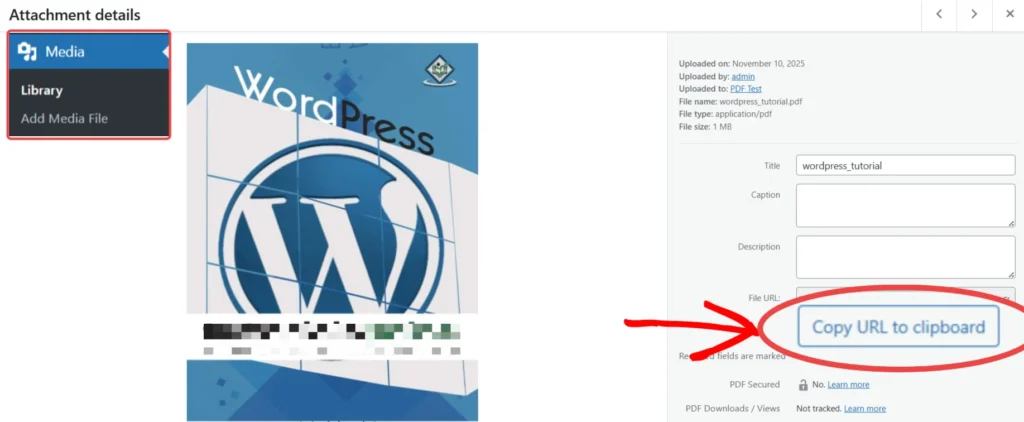
To get started, you need to navigate to WordPress Dashboard > Media > Library and locate the PDF you wish to embed.
You can keep your WordPress Media Library open in a separate browser tab for easy access to your PDF file links.
Click on the PDF file to show the attachment details panel and copy the file URL from the URL field.
Inserting the Shortcode into Your Page
Once you have the URL, you can place it into your editor using a text-based module.
- Open your page in the Classic Editor or your preferred Page Builder.
- For page builders, you need to add a module that supports shortcodes (such as ShortCode, Text Editor, HTML, or Code module).
- Manually enter the following shortcode structure:
[pdf-embedder url="PASTE_URL_HERE"] - Replace
PASTE_URL_HEREwith the link you copied from your Media Library.
Here is an example shortcode:
[pdf-embedder url="https://yoursite.com/uploads/document.pdf"]Code language: JSON / JSON with Comments (json)You can check our shortcode attributes page to see you how you can include additional attributes in the shortcode.
Frequently Asked Questions
Below are some common questions from users setting up their first embedded PDF.
Can I change the size of the PDF viewer?
Yes. You can customize the viewer size using shortcode attributes or by adjusting the PDF Embedder block settings.
Will my embedded PDF work with a caching plugin installed?
PDF Embedder is compatible with most caching plugins. However, we recommend adjusting your caching settings as shown in our Using Caching or Minifying Plugins guide.