

Need to switch to a new card or update your payment method before your next renewal? How you update billing details depends on whether your subscription was processed through Stripe or PayPal.
This guide covers both payment methods so you can update your billing information without disrupting your subscription.
Updating Credit Card Details
Before you get started, you need to access your account first.
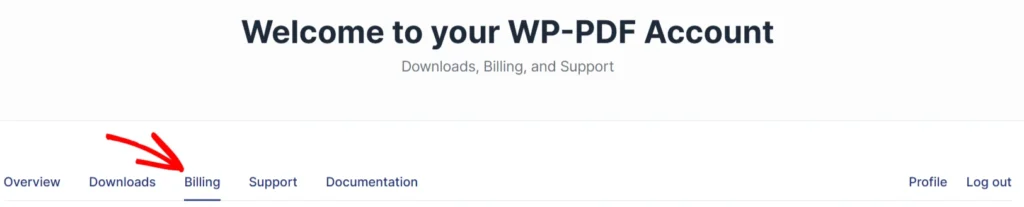
After logging in, click the Billing tab. This will open the billing page, which lists the payment history and your subscriptions
Scroll down to the Subscriptions section and click on the Update Payment Method link. A secure form to enter the new billing information will show up. Do this and save the form.
Note: If you do not see the Update Payment Method option, this means that you paid through PayPal.
Updating PayPal Details
Because PayPal handles subscriptions through its own secure “Billing Agreement” system, updating payment details directly from your PDF Embedder account dashboard is not available for PayPal subscriptions. If you used PayPal to subscribe to PDF Embedder, you have two options depending on the update you want to make.
To keep using your current PayPal account, update your payment method and credit card information from within PayPal. See PayPal’s guide on how to update your debit or credit card in your account.
To switch to a different PayPal account or stop using PayPal entirely:
- Cancel the auto-renewal on your current subscription. This stops your subscription from renewing through PayPal. If your license has not expired yet, it remains active until the end of the current subscription period.
- When your renewal period approaches, you will receive a reminder email with a renewal link. Use the link in the email, or renew directly from your account. Since the subscription is already cancelled, renewing manually gives you the option to choose a new payment method at checkout.
Note: If your account is on older pricing plans, cancelling to switch payment methods means a new subscription will be created with current pricing: https://wp-pdf.com/pricing/.
Frequently Asked Questions
Below, we’ve addressed common questions about updating billing details.
Can I update my billing details mid-subscription?
Yes. However, since PDF Embedder bills yearly, the updated payment method applies to your next annual charge.
Will cancelling my subscription to switch from PayPal affect my access?
No. Cancelling auto-renewal does not cut off access immediately. Your license stays active until the end of the current paid period, giving you time to set up a new subscription with your preferred payment method.