

Want access to features available on a higher license plan? Upgrading your PDF Embedder license takes just a few steps from inside your account, and the pricing of the upgrade is pro-rated(you only pay the difference from your current plan and only for the time remaining in your subscription year).
This guide walks you through upgrading from your current license plan(Basic, Plus, and Pro) to a higher plan.
Getting the Upgraded Plan
To get started, log in to your WP-PDF account. Once you’re logged in, click on the Downloads tab to see your current license details.

From here, click the Upgrade button next to the current license you want to upgrade.
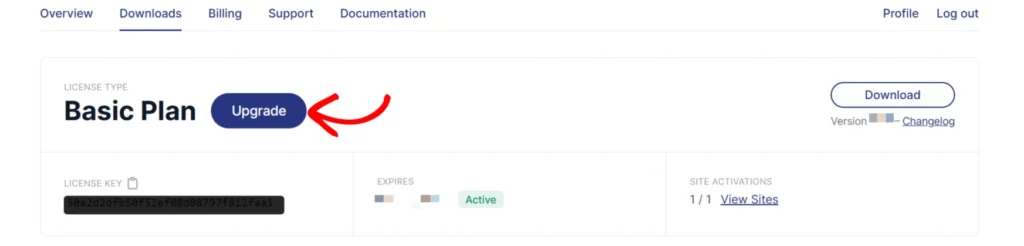
This will take you to a page with all the plans and the pro-rated upgrade cost. Select the plan you want to upgrade to and complete the checkout.
After upgrading, download the new plugin ZIP file from your account and install it on your WordPress site.
Handling Secure PDFs After Upgrading to Pro or Elite
If you upgraded to a Pro or Elite license and plan to use the Secure PDFs feature, your existing PDFs need to be re-uploaded so they are stored in the new /wp-content/uploads/securepdfs/ folder. Any shortcodes or blocks pointing to those files also need updating with the new secure URLs.
You can see more details in our Upgrading Your Site to the Premium Version guide.
Frequently Asked Questions
Below, we’ve addressed common questions about upgrading a PDF Embedder license.