

Installed PDF Embedder Premium, but not seeing updates, or your license status is not confirmed? Entering and verifying your license key is what connects your WordPress site to your subscription, giving you access to automatic updates and support.
This guide shows you how to find your license key in your account and enter it on your WordPress site.
Before you get started, make sure both PDF Embedder Lite and PDF Embedder Premium are installed and activated on your site.
Locating Your License Key
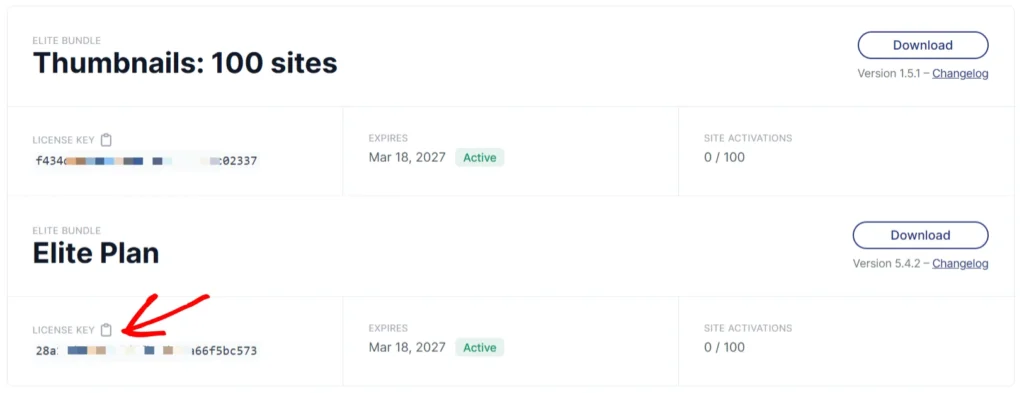
To get started, you’ll first need to log in to your WP-PDF account. Once logged in, click on the Downloads tab to open up a list of all your purchased licenses.

The license key is displayed directly below the plugin name. You can quickly copy your license key by clicking on the clipboard icon.
Adding the License Key on Your Site
To add the license key to your site, you need to head to your WordPress Dashboard > Settings > PDF Embedder. Click the License tab and paste your license key into the License Key field, then Save Changes.
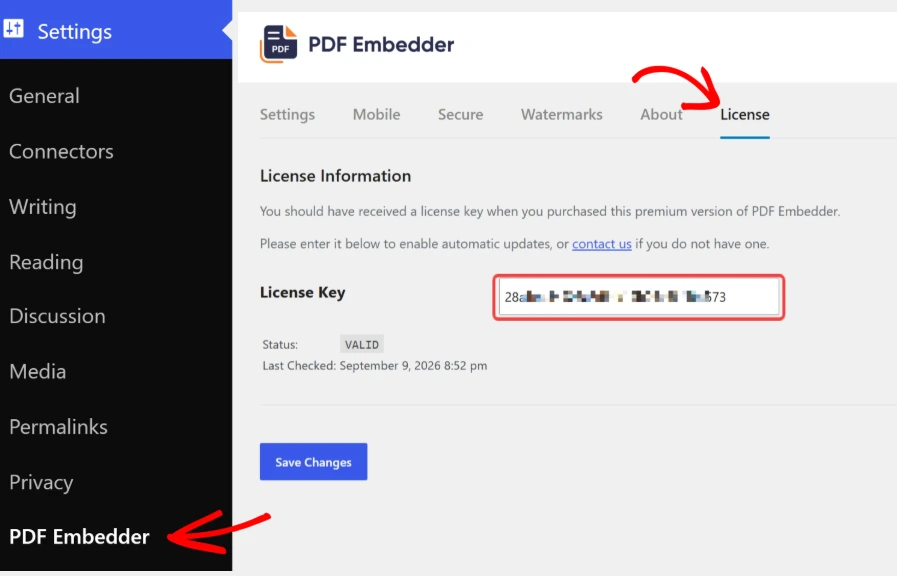
After saving, the license status updates to Valid.
Frequently Asked Questions
Below, we’ve addressed common questions about verifying a PDF Embedder license key.
Why can’t I find the license tab?
Go to the Plugins page and confirm if PDF Embedder Premium is installed and activated. If the Premium plugin is not listed, follow our guides to download the Plugin and install it on your site. The license tab will show up after the Premium plugin is installed and activated.