
Search for your own company name plus “pricing” or “brochure.” There’s a decent chance the top result isn’t your website at all. It’s a PDF. Someone finds your price sheet sitting in Google, clicks it, and lands on a bare document with no header, no navigation, and no way to reach anything else you offer.
Google has been doing this deliberately for 25 years, and it doesn’t ask permission first. So PDF SEO is less about optimization than about a decision most sites never get around to making: which of your files do you actually want found? Some should show up in Google. Others shouldn’t be searchable at all.
Does Google index PDFs? Yes. Google has indexed text-based PDFs since 2001 and treats them like any other page: it crawls the file, reads the text, follows the links inside it, and ranks it at its own URL. Uploading a PDF to the WordPress Media Library doesn’t hide it, and embedding it on a page doesn’t change it.
How Google indexes a PDF
A PDF sitting at a public URL competes for search results the same way an HTML page does. Google spelled this out back in 2011, by which point it already had hundreds of millions of PDFs indexed.
Its rule of thumb for whether a given file qualifies is one you can check yourself: if you can copy and paste the text out of the PDF into a plain text document, Google can index that text. Open the file, try to select a sentence. That’s the whole test.
A few specifics from the same guidance change how you’d handle a document:
- Scanned files are a coin flip, not a hiding place. Google says it may run OCR on PDFs whose text is embedded as images. A contract scanned on a photocopier might be invisible in search, or might not. The same contract exported straight from Word is readable every time. Don’t count on either outcome. If a document needs to rank, give it a real text layer. If it needs to stay out of search, use the controls below rather than hoping the scan hides it.
- Password-protected and encrypted PDFs can’t be indexed at all. Google names this exception explicitly. Check it before reaching for a fix you may not need.
- Links inside a PDF get followed and pass PageRank. They behave much like HTML links, and there’s no way to add
nofollowto one. Whatever your documents link to, they’re voting for it. - Two things decide the title Google displays: the title metadata saved inside the file, and the anchor text of links pointing to it. With neither set, you tend to get the filename, which is how
Q3-Report-FINAL-v2.pdfends up as a headline in someone’s search results.
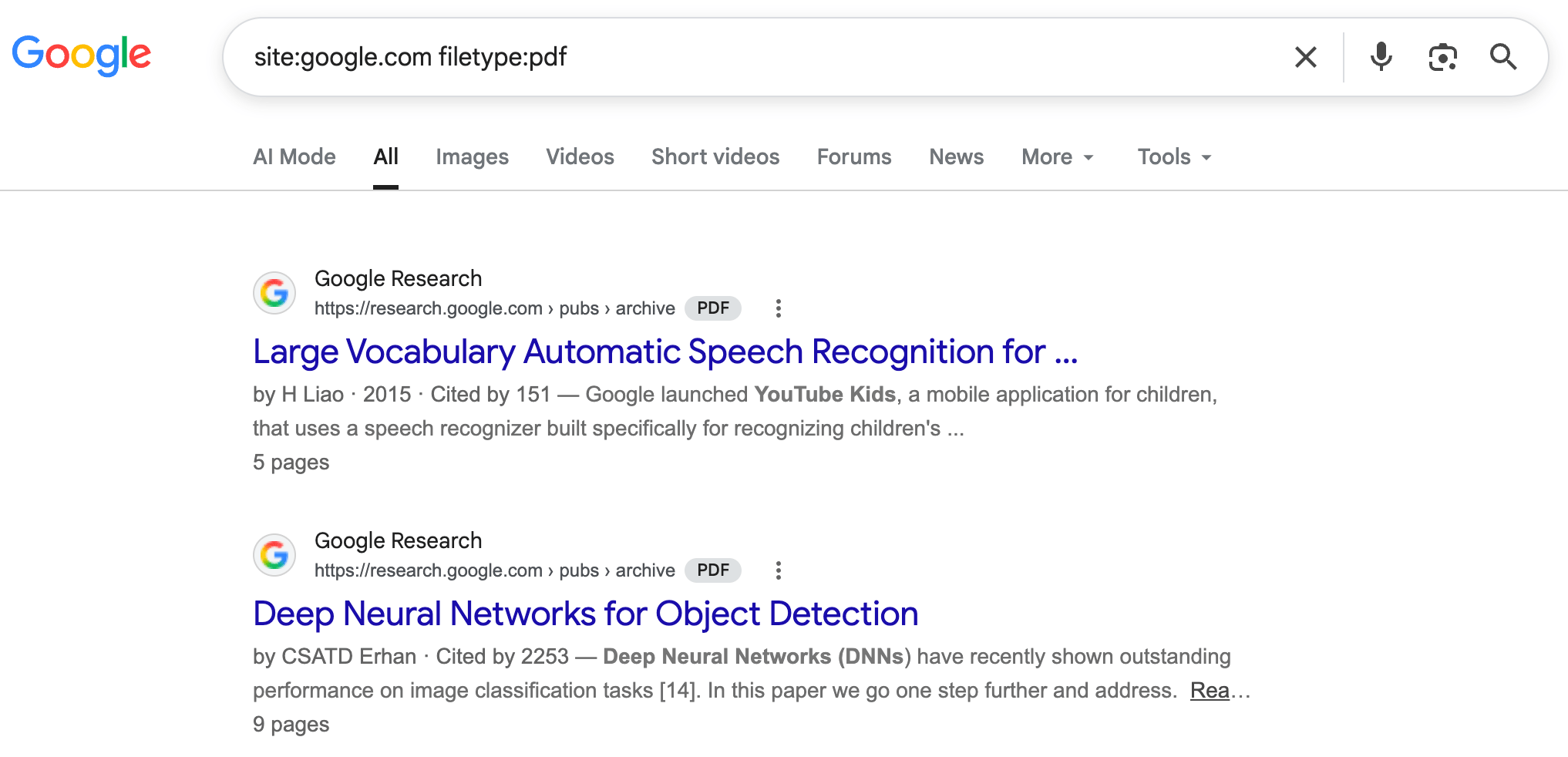
To see which of your own PDFs are already indexed, run one search operator against your domain:
site:example.com filetype:pdfCode language: CSS (css)That surfaces the PDFs Google is willing to show you. It’s a sample rather than a complete list, so treat Search Console’s Pages report as the authoritative version. Expect at least one surprise. The usual candidates are old drafts and files somebody uploaded once so they could email a link to one person.
Why PDFs outranks the page it’s embedded on
Google is blunt about this: PDFs “generally rank similarly to other webpages.” No penalty for being a file, and no built-in preference for the page that embeds one.
So picture the matchup. On one side, a WordPress page with a heading, two sentences, and a download button. On the other, a twelve-page document packed with the exact terminology someone just searched for, a keyword-rich title, and a few external sites linking straight to the file. When the PDF wins that, it wins on the merits as Google measures them. Nothing is broken.
That costs you twice.
You lose the visit. A visitor who lands directly on a PDF gets your document and nothing else: no site header, no navigation, no related content, no email signup, no chat widget, no path to your pricing page. You paid for that visitor somehow, in ad spend or content or staff time, and then spent them on a page whose layout you don’t control. They read the file, or they don’t, and then they leave.
You split your own signals. One topic living at two competing URLs means neither accumulates the full weight of backlinks, engagement, and internal links that a single URL would. Two mediocre rankings instead of one strong one.
This is the duplicate-content question people worry about, and Google’s answer is less alarming than expected while pointing the same direction. Serve a single copy of your content where you can. Where you can’t, specify which version is canonical rather than leaving Google to guess, either through your sitemap or with a canonical header served alongside the PDF. Nobody gets penalized. The signal just gets thinner.
On a newer WordPress install it’s worse than most site owners expect. WordPress generates an attachment page for every file in the Media Library, but 6.4 turned those pages off by default for any site installed on 6.4 or later. There’s no settings screen for it. The switch is a database option you reach through wp-admin/options.php or WP-CLI, and while it’s off, WordPress redirects attachment page requests straight to the file. So if your site predates 6.4, those pages still exist. If it doesn’t, the page your PDF theoretically lives on isn’t there at all, and the URL Google indexed really is just the raw file.
4 ways to handle a PDF in Google search
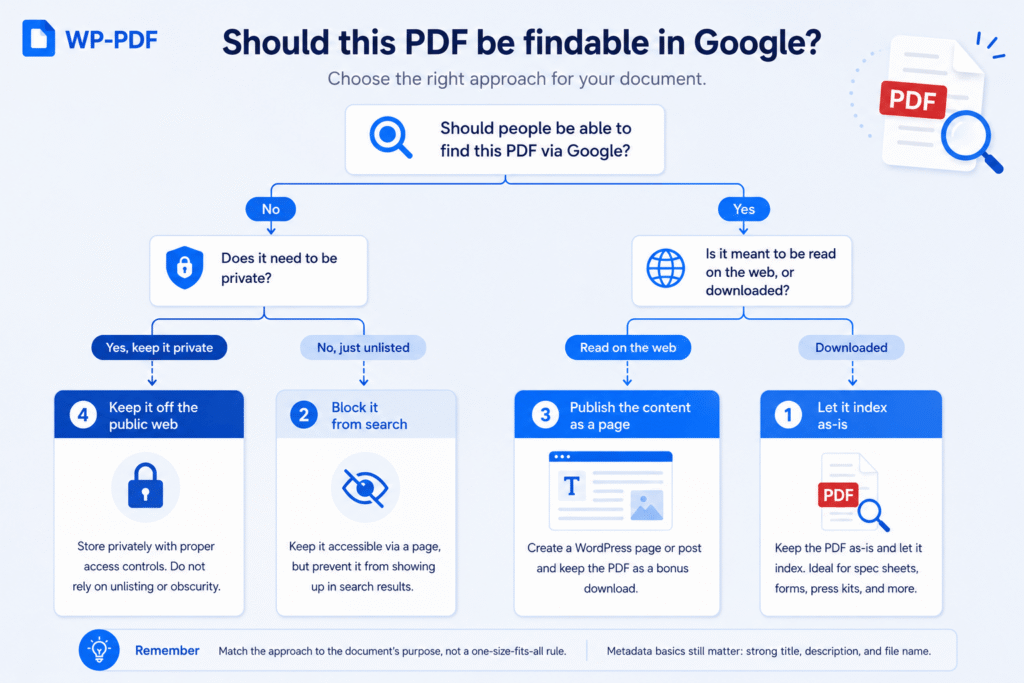
Every PDF on your site falls into one of four buckets. Three of them are search decisions; the fourth takes the document off the public web altogether. Which one applies depends on the document, not on a blanket rule for the whole site.
1. Let it index as-is
Some documents are meant to be found exactly as they are. A printable spec sheet, a government form, a published research paper, a press kit. Anything where the ideal outcome is “someone searches for this exact document and gets it.” If that’s the goal, there’s nothing to fix beyond the metadata basics below. Zero setup, and an extra entry point into your site for free.
Accept the tradeoff deliberately, though. No navigation, no CTA, no way to guide that visitor anywhere else. That’s fine for a form someone wants to print. It’s expensive for a document that’s doing real marketing work.
2. Block it from search
Internal price lists negotiated per account, working drafts, personalized statements, a lead magnet you only want reached through your own landing page, anything a competitor shouldn’t be able to surface with a two-second search. None of these belong in the public index. Hiding the file somewhere you hope nobody looks won’t do it. You have to tell search engines to leave it out on purpose, which gets its own section below.
3. Publish the content as a page instead
If a document exists mainly to attract organic traffic, like a how-to guide or an explainer, recreating it as a WordPress page or post is usually the stronger long-term move. Keep the PDF as a printable bonus and let the page do the ranking.
| HTML page | ||
|---|---|---|
| Ranking signals | Text only; thin structure | Headings, internal links, schema |
| Updating | Re-export, re-upload, re-embed | Edit and save |
| Visitor path onward | Dead end | Nav, related posts, CTA |
| Mobile reading | Pinch and zoom | Responsive |
| Best for | Fixed formatting, print, download | Anything meant to be read on the web |
The step people miss: if the PDF has already earned links, redirect its URL to the new page or mark the page as canonical. You keep the backlinks either way, but without one of those two moves they stop counting toward the page you want ranking, and you’ve recreated the split-signal problem above on purpose.
Save PDFs for documents that need to be files. Forms to print, manuals to keep, anything whose layout has to survive being saved to a desktop.
4. Give the PDF a real page to live on
This is the direct fix for split traffic, and it doesn’t require rewriting the document as a page.
Dynamic Attachment Pages, available on the Pro plan and up, turns that dormant WordPress attachment page into a real one built with your site’s active theme: your header, your navigation, your footer, and the PDF viewer embedded in the middle. The file stays downloadable and stays indexable. What changes is which URL is the strongest candidate to rank. A themed page with your navigation and your calls-to-action, instead of a bare file.
It also handles the WordPress 6.4 problem for you. Premium filters wp_attachment_pages_enabled itself, so the pages work on a new install without anyone touching the database or a config file. Lite doesn’t. On a site installed on 6.4 or later, the free plugin leaves that global setting exactly as WordPress left it.
Before you switch it on, know that this doesn’t remove the PDF or change its URL. You aren’t gambling with rankings the file has already earned. You’re putting a stronger competing page on your own domain and letting Google prefer it.
Setup note
If the PDF is already stored in secure mode, there’s one extra step. Attachment pages for secure PDFs are off by default, so go to Settings » PDF Embedder » Secure and enable Auto-generate Attachment Pages for Secure PDFs.
If you take one thing from this post: for a document already outranking its own page, this is the fastest fix that doesn’t involve pulling the PDF down. See what’s included in the Pro plan →
How to stop Google from indexing a PDF
For a file you’re going to keep serving publicly, one mechanism does the job. A PDF has no <head> section, so the usual <meta name="robots" content="noindex"> tag has nowhere to live. Google’s answer is to send the instruction in the response headers instead: an X-Robots-Tag: noindex header served with the file. Its own guidance on PDFs calls this the simplest way to keep a document out of results, and it works for any non-HTML resource, images and video included.
This is also why your SEO plugin can’t do it. Yoast, AIOSEO, and the rest add a meta robots tag to a page’s HTML head. A PDF doesn’t have one. The fix lives at the server or plugin level, which is why it feels harder to find than it should be.
At the server level, that’s a rule matching the .pdf extension. On Apache, in .htaccess:
<Files ~ "\.pdf$">
  Header set X-Robots-Tag "noindex"
</Files>Code language: HTML, XML (xml)
On Nginx:
location ~* \.pdf$ {
  add_header X-Robots-Tag "noindex";
}Code language: JavaScript (javascript)
Note that both of those hit every PDF on the site. For per-file control, or if you’d rather not touch server config at all, Prevent Search Engine Indexing (Pro plan and up) applies the same exclusion from the WordPress admin, document by document.
Two things to expect afterward.
Verify it before you trust it. Google Search Console’s URL Inspection tool has a Test Live URL option that reports whether indexing is allowed for that specific file. No Search Console access? curl -I https://example.com/file.pdf | grep -i x-robots-tag tells you the same thing from a terminal.
It’s not fast. Google has to recrawl the file to see the new header, and its own documentation warns this can take months for a page it doesn’t consider important. Requesting a recrawl through URL Inspection speeds it up. Search Console’s Removals tool hides a URL faster, but only for about six months, and the block can lapse early if the file returns an error while it’s active. Use it to buy time while the header does the permanent work, then re-submit once you’ve confirmed the header is live.
Why robots.txt won’t remove a PDF from Google
If you want a PDF out of search, don’t reach for robots.txt. It solves a different problem, and here it can quietly make things worse.
Robots.txt tells crawlers not to visit a URL at all. That sounds like the same outcome as noindex, but it isn’t. A crawler blocked from requesting the file never sees the noindex instruction placed on it, because it never gets far enough to read the response. And if the PDF already has links pointing at it, Google can keep listing that URL anyway, usually as a bare link with no description, assembled from the link and its anchor text alone. You told the crawler to stay away, which is not the same as telling Google to drop the page.
Google is direct about both halves of this: a noindex rule inside robots.txt isn’t supported at all, and a noindex instruction only works if the crawler can reach the resource to see it.
Blocking crawling and blocking indexing are two different jobs. Robots.txt only does the first one.
Noindex vs. blocking access: which one do you need?
A noindex header keeps a PDF out of search results. It does nothing to stop someone who already has, or can guess, the direct link. For a document that merely shouldn’t clutter search, that’s fine. For one that shouldn’t be readable by strangers at all, it isn’t close to enough.
Store Files Securely and Block File Access, both on the Pro plan and up, take a different route. The file moves into protected storage served through the plugin rather than sitting at a plain public path, and direct downloads outside the embedded viewer are blocked. Keeping crawlers out follows as a side effect of that access restriction, not as a separate indexing setting.
The distinction matters in one direction more than the other. A file a crawler cannot reach behaves differently from one that’s only been told not to index. But for a document already linked publicly somewhere before you decided to lock it down, the noindex header is still the more precise tool for cleaning up what’s already in the index.
PDF SEO checklist: metadata, text layer, filenames
Whichever bucket a file lands in, four things do most of the work:
- Set the Title, Author, and Subject fields inside the document before you upload it. These are the PDF equivalent of an HTML title tag, and the title is one of the two signals Google uses to decide what to call your file in results.
- Make sure the file contains real text. Use the copy-paste test above.
- Name the file something a person would recognize.
2026-benefits-guide.pdf, notUntitled-3.pdf. The filename is what you tend to get when metadata is missing, and it shows in the URL regardless. - Give the embed a meaningful title. The
titleattribute on the PDF Embedder shortcode or block controls the link text shown before the interactive viewer loads, and becomes the accessible title read aloud by screen readers on Premium. One setting doing double duty for search and accessibility.
Step 1 has more traps than it looks like. Word’s Print to PDF strips hyperlinks that Export to PDF preserves, and Acrobat buries the fields somewhere unexpected. Our PDF SEO and indexing documentation walks through the exact clicks in both, plus what to do if links break on export.
Which approach fits which document?
| Document type | Approach | Why |
|---|---|---|
| Public spec sheet, brochure, press kit | Let it index (1) | Self-explanatory; a free entry point |
| Form or template to download | Let it index (1) | High intent, ranks well, rarely sensitive |
| Blog-style guide or explainer | Publish as a page (3) | Ranking, updating, and CTAs all get easier |
| Public pricing sheet | Publish as a page (3) | Keep the PDF as a download, not the ranking URL |
| Manual or documentation meant to be read as-is | Attachment page (4) | Should rank with your navigation intact |
| Whitepaper used as a lead magnet | Attachment page (4), or block from search (2) | Gate the download behind a page you control |
| Internal price list | Store securely | Unreachable, not just unlisted |
| Contracts, personalized statements, confidential reports | Store securely | Access control, not a crawl instruction |
Can you do this on the free version?
Since most of this post is about control rather than embedding, let’s be plain about where the line sits.
The free PDF Embedder plugin displays PDFs. It doesn’t include indexing controls. Whether a PDF gets indexed at all is a function of your server and Google, not the plugin, so options 1 and 3 are entirely available to you on Lite. Options 2 and 4 mean editing .htaccess or your Nginx config yourself, and on any site installed on WordPress 6.4 or later, flipping wp_attachment_pages_enabled by hand.
The features that turn those two into admin settings are Dynamic Attachment Pages, Prevent Search Engine Indexing, Store Files Securely, and Block File Access, all on the Pro plan and up.
Last thing, in case it’s what brought you here. If you want visitors to search the text inside your PDFs from your own site, rather than have those files turn up in Google, that’s a different feature entirely. Search Text in PDFs starts at the Basic plan and has nothing to do with the indexing controls above.
Decide once, per document, and move on
Most sites never make an active decision about PDF indexing. It happens one upload at a time, until a price list Google shouldn’t have found surfaces in a search a competitor happens to run, or a whitepaper starts outranking the landing page built to capture leads from it.
The fix isn’t complicated. Walk your Media Library against the table above and you’ll probably find files sitting in every bucket already, by accident rather than by choice.
Start with the split-traffic ones, because those are the documents already earning traffic you’re currently handing to a dead end. Dynamic Attachment Pages and Prevent Search Engine Indexing are both on the Pro plan and up, alongside secure storage and watermarking, and both take a few minutes to set up once you know which PDFs need which treatment.